The balance sheet in UltraTax CS is out by 38,400. You have checked the trial balance twice, the assets agree to the client's books, and the difference is oddly specific.
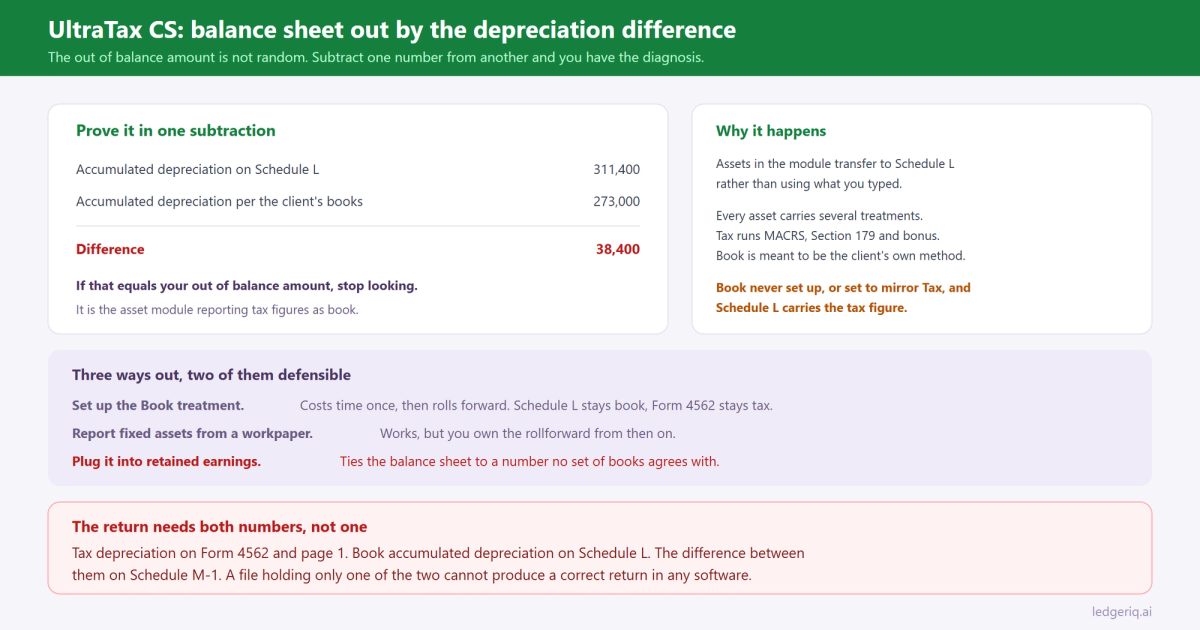
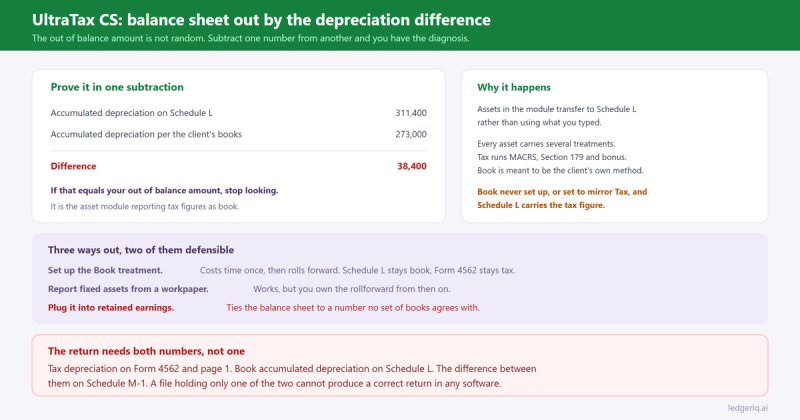
Take the accumulated depreciation on Schedule L and compare it to the accumulated depreciation in the client's general ledger. If they differ by 38,400, you have found it, and the cause is not a keying error. It is the asset module doing exactly what it was configured to do.
What is actually happening
UltraTax CS builds Schedule L from two sources, and most preparers only think about one of them.
Balances you enter or import go in through the balance sheet screens. Fixed assets are different. When the asset module holds assets for the client, UltraTax transfers the depreciable asset cost and the accumulated depreciation from the module onto Schedule L rather than using whatever you typed.
That is helpful when the module holds book figures. It is a problem when it does not.
The asset module carries several treatments for every asset: Tax, Book, AMT and state treatments among them. Tax is the one running MACRS, Section 179 and bonus depreciation for Form 4562. Book is supposed to be the client's own method and life, the numbers their financial statements use.
If the Book treatment was never set up, or was set up to mirror Tax, then the book accumulated depreciation the module reports is the tax figure. Schedule L then carries tax accumulated depreciation, the client's general ledger carries book, and the balance sheet is out by exactly the difference between them.
Why the difference is always that specific number
This is the part that makes the diagnosis fast.
Book and tax depreciation diverge from the first year of an asset's life and the gap compounds. A client with a few years of Section 179 elections can easily be carrying 40,000 or 200,000 of extra accumulated depreciation on the tax side. We covered why the two systems differ, and where the difference belongs on the return, in book vs tax depreciation.
So the out of balance amount is not random. It equals the cumulative book to tax difference in accumulated depreciation, which means you can prove the diagnosis in one subtraction before touching anything in the software.
The same logic applies to cost, less often. If assets were entered in the module at a cost that includes something the client expensed, or excludes an asset the client capitalised, Schedule L line 10a will be off too.
Fixing it properly
There are three ways out, and only two of them are defensible.
Set up the Book treatment. The correct fix. Enter the client's book method, life and prior accumulated depreciation for each asset so the module carries both sets of numbers. It costs time in the first year and nothing after that, because the treatment rolls forward. This is the only approach that leaves Schedule L reporting book figures and Form 4562 reporting tax figures without either being retyped.
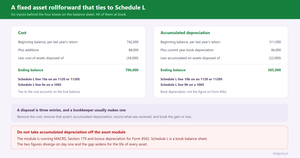
Keep fixed assets out of the module transfer. If the client's asset detail lives in a workpaper rather than in the module, you can report the book cost and book accumulated depreciation on the balance sheet directly, and let the module drive only Form 4562 and page 1 depreciation. This works, but you own the rollforward from then on, which is the workpaper described in building a fixed asset rollforward.
Plugging the difference into retained earnings or an other asset line. Not defensible, and depressingly common at the end of a long day. It makes the balance sheet tie while leaving Schedule L reporting a number that agrees with no set of books anywhere, and next year the plug has to grow.
Check these before you conclude it is depreciation
Depreciation is the most common cause in UltraTax specifically, because of the treatment behaviour. It is not the only one, and the general hunt for a Schedule L difference is worth running in order, which we set out in Schedule L is out of balance.
Three that come up often on a return prepared in UltraTax CS.
Beginning balances that do not match last year's return. The beginning column comes from the prior year proforma. If someone amended the return, or adjusted the client's file after filing, the proforma and the books disagree and the difference appears in the beginning column where nobody looks.
Retained earnings entered as well as computed. Schedule M-2 and the retained earnings line interact, and a forced retained earnings figure combined with a computed one produces a balance sheet that balances for the wrong reason.
Rounding. UltraTax reports in whole dollars. A trial balance with cents, imported account by account, can produce a one or two dollar difference that has nothing to do with the books at all. Fix it by rounding in the workpaper rather than by hunting for it in the return.
What the difference is telling you
Worth pausing on, because it reframes the fix.
A balance sheet that is out by the book to tax depreciation difference is not a defect in UltraTax. It is the software refusing to pretend that two different measurements are the same number. The tax return needs both figures: tax depreciation on Form 4562 and page 1, book accumulated depreciation on Schedule L, and the difference between them on Schedule M-1.
If your file only holds one of those numbers, the return cannot be prepared correctly no matter which software you use. The out of balance message is the first place that shows up.
Where Ledger IQ fits
The fix above is a workpaper problem. The software is downstream of it.
In Ledger IQ, the trial balance you upload carries book depreciation and book accumulated depreciation exactly as the client's general ledger has them, and those map to the Schedule L lines at book, which is where they belong. Fixed asset cost and accumulated depreciation map to separate named lines, so they cannot net into one figure on the way to the return.
The book to tax difference goes in as a tax journal entry. TJEs move the tax balance column of the Working Trial Balance without touching the book figures, so the workpaper shows book depreciation, the difference, and the tax figure as three visible numbers rather than one. That column is Schedule M-1 in workpaper form.
Because the tax software computes depreciation from its own asset module, Ledger IQ marks depreciation and fixed asset lines as not exported on purpose. They appear in your workpaper so Schedule L ties and the difference is documented, and they stay out of the import file so they cannot fight the asset module or double up.
Then the tie out view closes the loop. Key the as filed Schedule L amounts back in, and any line that disagrees with the workpaper is flagged. An accumulated depreciation figure that arrived from the Tax treatment instead of the Book treatment shows up as a difference on that line, before the return goes out.
Ledger IQ supports Forms 1065, 1120S and 1120, with exports for Drake, Lacerte and UltraTax CS. Your first return is free, so you can try it at portal.ledgeriq.ai on a live client without a credit card.