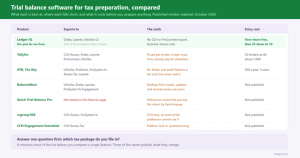
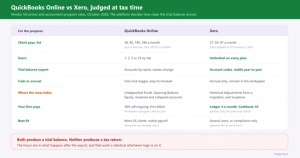
Part of our guide to Trial Balance Software for Tax Preparation: 7 Options Compared.
"Import failed: Invalid data structure at row 47."
Trial balance import software for tax preparation streamlines this entire workflow, automating file validation, account mapping, and data preparation.
That's the error message. Row 47. No explanation of what's invalid. No suggestion for how to fix it. Just "row 47" and the knowledge that you're about to spend the next 20 minutes scrolling through an Excel file trying to figure out what's different about row 47 compared to rows 1 through 46.
Trial balance imports should be straightforward, client sends file, you import it, you move on to tax prep. Sometimes it works that way. More often, you're reformatting files, deleting subtotal rows, fixing column headers, and wondering why the accounting system your client uses thought it was helpful to export a trial balance with three blank columns and a worksheet tab called "Summary" that contains nothing useful.
The traditional trial balance import process has two paths. Path one: the import works, and you spend 30-45 minutes manually entering numbers from the trial balance into tax software fields. Path two: the import fails, you spend 20 minutes fixing the file, and then you spend 30-45 minutes manually entering numbers. Neither path is efficient, and both create opportunities for errors that won't surface until review (if you catch them) or client notices (if you don't).
Modern trial balance software changes this workflow entirely. Instead of fighting file formats and manually typing numbers, you import once, categorize using dropdowns, and export a clean CSV that loads directly into your tax software with zero manual data entry.
What Makes Trial Balance Imports Fail (And Why)
Tax software expects trial balance files in a specific structure. The file needs consistent columns with recognizable headers. It needs one row per account with no subtotals, summaries, or blank rows mixed into the data. It needs numbers formatted as numbers, not text strings that look like numbers. When any of these expectations aren't met, the import fails.
The problem is that accounting systems don't export files the way tax software wants to import them. QuickBooks exports trial balances with subtotal rows. Xero includes summary sections. Excel files from bookkeepers who "cleaned up the formatting" have merged cells, blank columns, and headers spread across multiple rows because it looks better on screen.
Every failed import has a reason, but tax software error messages rarely explain the actual problem. "Invalid data at row 47" doesn't tell you that row 47 is a subtotal row with text in the account column. "Column header not recognized" doesn't tell you that your column is labeled "Description" and the software expects "Account Name." You're left guessing what's wrong based on cryptic messages that assume you already know what correct structure looks like.
The Manual Data Entry Problem
Even when the import works perfectly, you're not done. The trial balance loaded into your tax software in some generic import format, but now you need to map it to actual tax return lines. Account 6140 (Office Supplies) needs to go to Schedule C Line 18 (Office Expense). Account 6250 (Insurance) goes to Line 15. Account 7050 (Bank Fees) goes to Line 27a (Other Expenses).
You do this manually. Open the tax return. Click to Schedule C. Click into Line 15. Go back to the trial balance. Find Insurance. Type $8,432. Tab to the next field. Go back to the trial balance. Find the next account. Click into the tax return field. Type the number. Repeat this process for every account on the trial balance.
For a trial balance with 150 accounts, you're clicking and typing 150 times. Somewhere in that process, you'll type $12,430 as $12,340. Or you'll click into the wrong field and put an expense number in an income field. Or you'll skip a line because your eyes jumped from row 73 to row 75 without processing row 74.
These aren't theoretical errors. Manual data entry has a 1-3% error rate under normal conditions. During tax season when you're tired, processing high volume, and working under deadline pressure, that rate increases. Most errors are small enough that they don't materially affect the tax calculation. Some aren't. All of them could have been avoided by eliminating manual entry entirely.
The Detail Preservation Challenge
Your client has eight different advertising expenses on their trial balance: Google Ads, Facebook Ads, LinkedIn Ads, Instagram Ads, Trade Show Booth, Print Materials, Promotional Items, and Website Hosting. All eight map to the same tax return line (Advertising), but you want the detail preserved so anyone reviewing the return can see the breakdown.
With manual entry, you have two bad options. Option one: Create eight separate Advertising line items in your tax software, each with its own description and amount. This takes extra time and creates eight opportunities for typing errors instead of one. Option two: Add up all eight amounts in your head or on a calculator, enter one combined total for Advertising, and lose all the detail that was in the trial balance.
Neither option is good. The first is slow and error-prone. The second loses information that might be valuable during review or if the client gets questioned about specific expenses.
Modern trial balance software handles this automatically. You categorize all eight accounts as "Advertising" using a dropdown. When you export to tax software, all eight appear as separate detailed line items under the Advertising total. Google Ads shows as one line. Facebook Ads shows as another line. The detail from the trial balance appears in the tax return without additional data entry or manual line item creation.
Year-Over-Year Inefficiency
Your firm has prepared returns for ABC Consulting for nine consecutive years. Their chart of accounts hasn't changed in seven years. Account 6140 is Office Supplies. Account 6250 is Insurance. Account 6410 is Rent. Every year, same accounts, same structure.
In traditional workflows, you categorize these accounts from scratch every year. You open the trial balance, look at each account, figure out (or look up) what category it maps to, and manually enter it in your tax software. The fact that you did this exact same mapping last year doesn't help you this year because your process doesn't remember.
For new clients or clients with frequently changing charts of accounts, starting fresh each year makes sense. For established clients with stable account structures, repeating the entire categorization process annually is waste. You're spending time solving a problem you already solved, getting no value from the work you did previously.
Trial balance software with year-over-year memory changes this. Year one, you categorize all the accounts, Office Supplies maps to Office Expense, Insurance maps to Insurance, Rent maps to Rent. Year two, you import the new trial balance, and the software recognizes the same accounts from last year and applies the same categories automatically. You review the automatic mappings and handle any new accounts. Total time: 5 minutes instead of 45.
Adjusting Entries Without a System
Most business returns need adjusting journal entries. The client didn't record depreciation. Shareholder distributions got coded to expense accounts. There's a personal expense that needs to be backed out. These adjustments need to be documented, tracked, and tied to the final trial balance that supports the tax return.
In traditional workflows, adjustments live... somewhere. Maybe in a separate Excel file. Maybe in notes in your tax software. Maybe in your head with a mental note to remember what you changed. There's no standardized workflow, which means every preparer handles it differently, and six months later when someone asks "Why is this number different from the trial balance?" you're trying to reconstruct what you did.
Modern software handles AJEs (adjusting journal entries), TJEs (tax journal entries), and RJEs (reclassifying journal entries) systematically. You enter the adjustment once. It's applied to the trial balance. It flows through to the tax return. You get a downloadable PDF showing three things: the original trial balance the client sent, all adjustments you made, and the final adjusted trial balance that ties to the tax return. This becomes your workpaper showing exactly what changed and why.
The Modern Workflow: Import, Categorize, Export
Modern trial balance software simplifies the process to three steps instead of fifteen.
**Step 1: Import.** Upload your Excel or CSV trial balance file. The software handles format detection and normalization automatically. QuickBooks export? Fine. Xero export? Fine. Random Excel file from a bookkeeper? Also fine. The software figures out what you uploaded and standardizes it into a consistent structure.
**Step 2: Categorize.** Every account from the trial balance appears on one page with a dropdown next to it. Select the category from the dropdown, no typing, just selecting. Office Supplies → Office Expense. Insurance → Insurance. Bank Fees → Other Expenses. For returning clients, accounts you categorized last year are already mapped. You only handle new accounts or accounts that changed.
**Step 3: Export.** Download the import file for your tax software. For Lacerte and UltraTax CS that's a CSV that loads through their trial balance import; for Drake it's Drake's own import workbook with every amount already filled into the correct cells, ready for Tools › File Maintenance › Import Data. Income goes to income lines. Expenses go to expense lines. Detail is preserved. No manual data entry required.
Total time from trial balance receipt to tax return data entry complete: 5-10 minutes for returning clients, 20-30 minutes for new clients with complex trial balances.
Handling the One-Page Categorization Interface
Traditional tax software organizes data entry by tax form structure: income section, deductions section, balance sheet section. When you're entering a trial balance, you're constantly clicking between screens. Enter gross receipts. Click to Cost of Goods Sold. Enter inventory. Click to deductions. Enter advertising. Click to meals. Back and forth until you've visited every section and manually entered every account.
The one-page categorization interface shows all accounts at once. Scroll down the page. Select categories from dropdowns. Everything is visible. You're not clicking through tabs trying to remember whether you already entered that account or not. You can see your progress. You can see which accounts still need categorization. When you're done with categorization, you're done, no hunting through screens wondering if you missed something.
The dropdown selections are context-aware based on entity type and tax software. A Form 1065 partnership shows different lines than a Form 1120S, and the categories come from the actual line list your tax software imports, so you're never guessing whether a category exists on the return you're preparing.
Error Reduction Through Elimination
Manual data entry errors fall into predictable categories: transposition (typing $1,234 as $1,324), decimal errors ($45,000 typed as $4,500 or $450,000), wrong field (income number entered in an expense field), and skipped rows (eyes jumped from row 62 to row 64 without processing row 63).
These errors happen because humans make mistakes when performing repetitive tasks. The error rate is roughly 1-3% under normal conditions. Process 100 numbers manually, and you'll probably make one to three errors. They're usually small. Sometimes they're not.
Trial balance software eliminates the task where errors happen. You're not typing numbers. The software imports them directly from the trial balance file. What's in the Excel file is what goes to the tax return, exactly, with no human transcription. The error rate for data transfer drops to near-zero.
You still need to review the numbers for reasonableness, software doesn't know that $82,000 in inventory for a consulting firm is probably wrong. But you've eliminated an entire category of errors (transcription) from the workflow, which means fewer corrections during review and fewer amended returns after filing.
Frequently Asked Questions
What if the client's trial balance doesn't have account numbers, just account names?
That's fine. Modern trial balance software works with account names, account numbers, or both. Account numbers make matching easier year-over-year (especially if account names change slightly), but they're not required. The software can match based on account name similarity even if exact names change. "Office Supplies" and "Office Supply Expense" will be recognized as the same account from year to year unless you override it.
We use ProSeries, not Lacerte. When will that integration be available?
UltraTax CS and Drake are supported today alongside Lacerte, with the identical workflow, import the trial balance, categorize, export the import file for your software. ProSeries is not currently supported; if ProSeries support matters to your firm, contact support so your interest is logged against the roadmap.
Can I make changes after I've exported to tax software, or do I have to start over?
You can make changes at the source and re-export. If you categorized something incorrectly or need to add an adjusting entry, make the change in the trial balance software, download a new CSV, and re-import to your tax software. The new import replaces the old data. You don't have to manually hunt through the tax return finding what needs to be changed, just fix it at the source and re-import.
Move from Manual Entry to Systematic Import
Ledger IQ handles trial balance imports from Excel or CSV through direct export to your tax software. Import your trial balance, categorize accounts using dropdown selections on a single interface, enter adjusting entries with systematic tracking, and download an import file (CSV for Lacerte or UltraTax CS, or a filled Drake import workbook), with all detail preserved. Year-over-year account memory means returning clients only require categorization of new accounts. The workflow reduces trial balance import and data entry from 30-60 minutes to 5-10 minutes. Supports Forms 1065, 1120S, and 1120.